Adding a Contribution Manually
How to record cash, bank transfers, or un-forwarded M-Pesa payments.
BeginnerTreasurer
While KapuLetu automates M-Pesa processing via WhatsApp, you will often need to record payments made in cash or via direct bank transfer. You do this by manually adding the contribution.
1
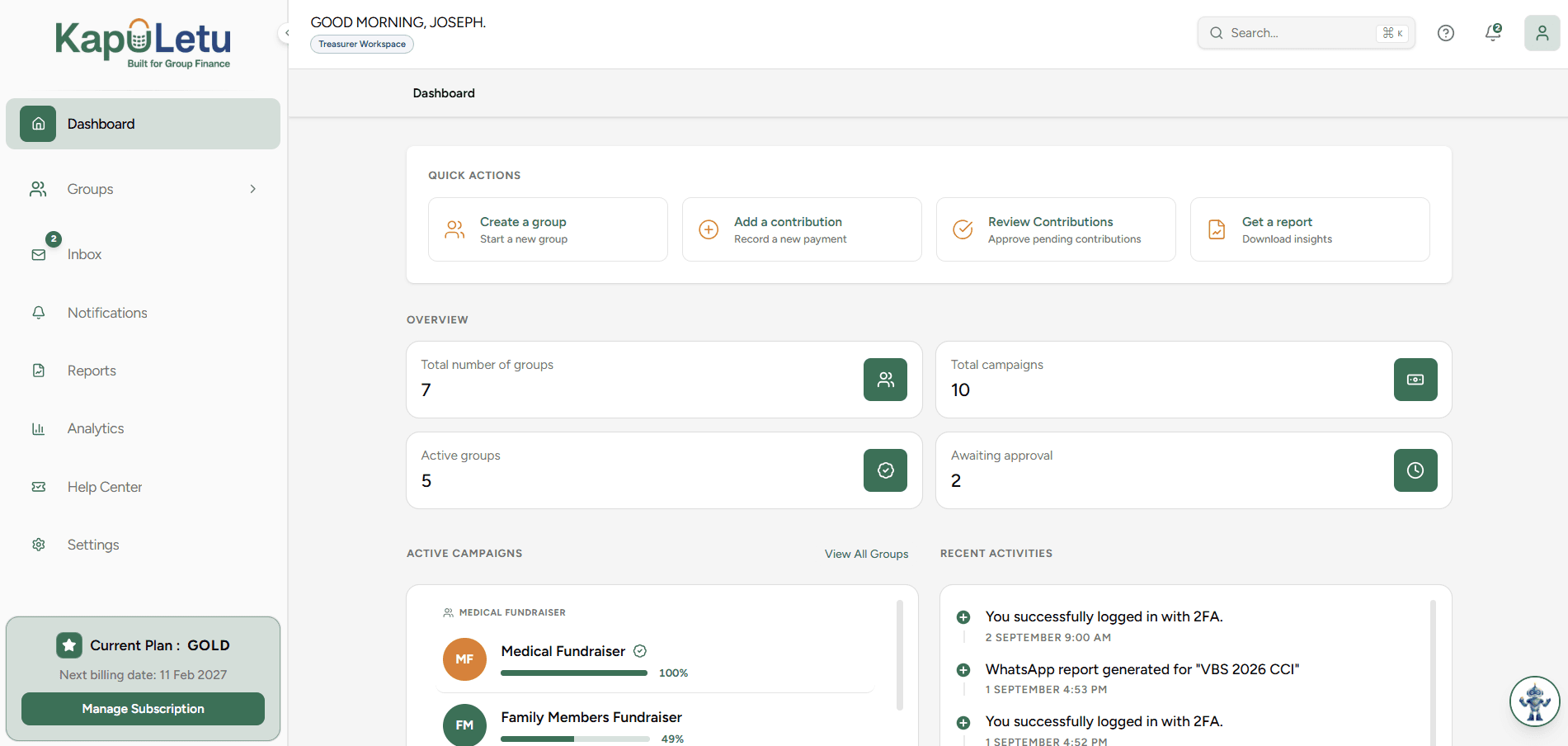
Click 'Record Contribution'
From the dashboard or contributions tab, click the 'Record Contribution' button.
2
Select the Contributor
Search for and select the member who made the payment.
3
Enter the Amount & Method
Input the financial amount and select the payment method (e.g., Cash, Bank Transfer).
4
Assign to an Activity
Select which fundraising activity this money is meant for.
5
Submit for Review
Click 'Save'. The contribution is now securely logged in your Inbox awaiting final approval.
Manual vs Automated
Manually added contributions still go to your Inbox first! They must be explicitly approved before they affect your balances.