Understanding the Contribution Inbox
How to review, correct, and verify incoming money before it hits the ledger.
The Inbox is your staging area. When WhatsApp forwards an M-Pesa message, or when an Assistant Treasurer adds a manual cash record, it lands here first. It is your responsibility to verify its accuracy.
The Review Workflow
Open the Inbox
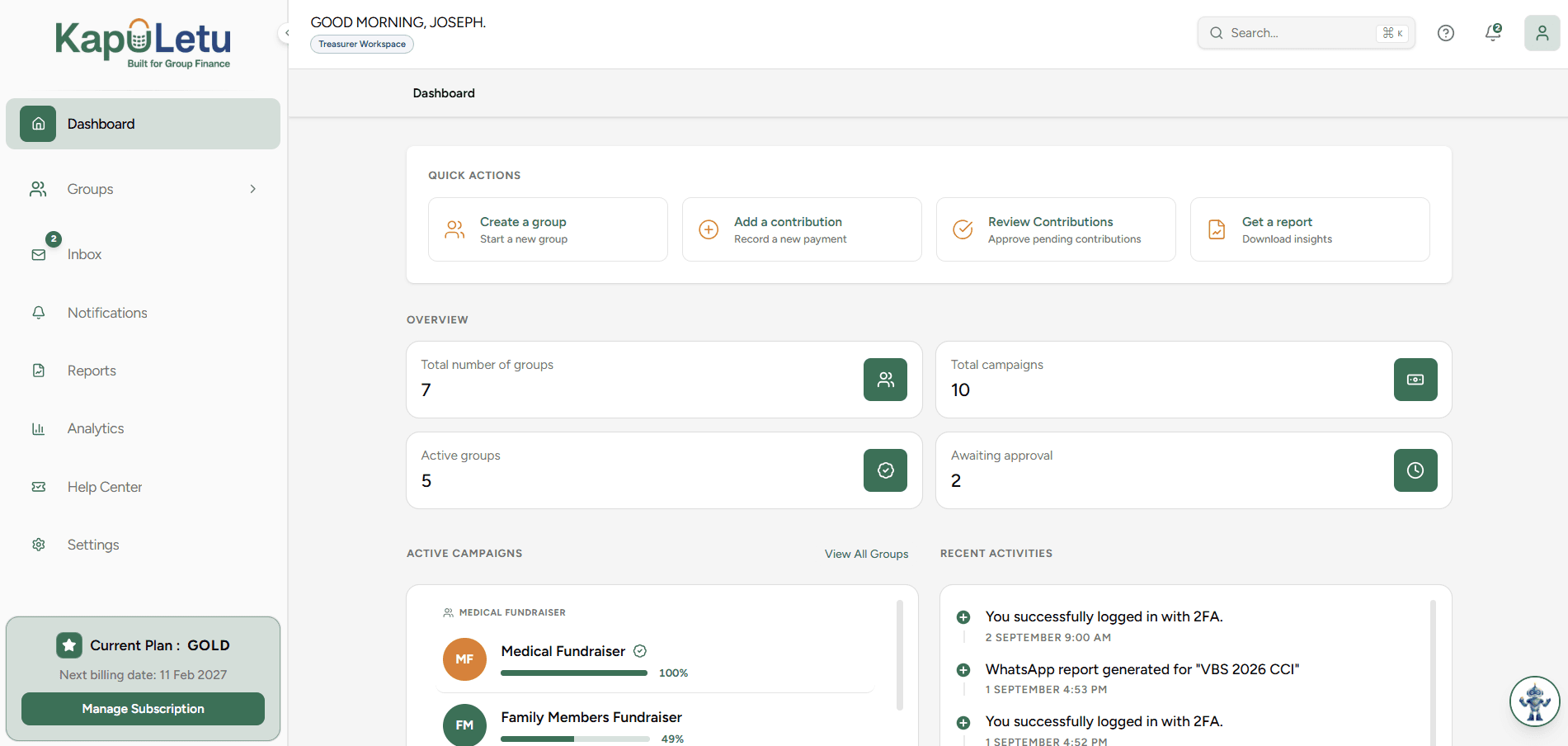
Navigate to Contributions in the sidebar, and click on the 'Inbox' tab. This shows all unverified transactions.
Select a Pending Contribution
Click on any pending M-Pesa or Cash entry to open the review panel on the right side.
Verify Extracted Details
Check that the sender's phone number, name, and amount match your expectations. Edit if necessary.
Assign the Activity
Select which Fundraising Activity (e.g., 'Welfare Fund') this money belongs to from the dropdown.
Approve
Click the green 'Approve' button. The contribution is now locked into the ledger and will appear on reports.
Common Inbox Issues
Masked Phone Numbers
If a number is masked (e.g., +254712***789), you will need to manually link it to a member from the dropdown during review.
Duplicate Transactions
If two members forwarded the same M-Pesa message, KapuLetu will flag it in the Inbox. You should reject the duplicate.