Navigating a Campaign
Learn about the different sections within a campaign dashboard.
Once you've created a campaign, you'll spend most of your time managing it through its dedicated dashboard. Here's what you will find inside:
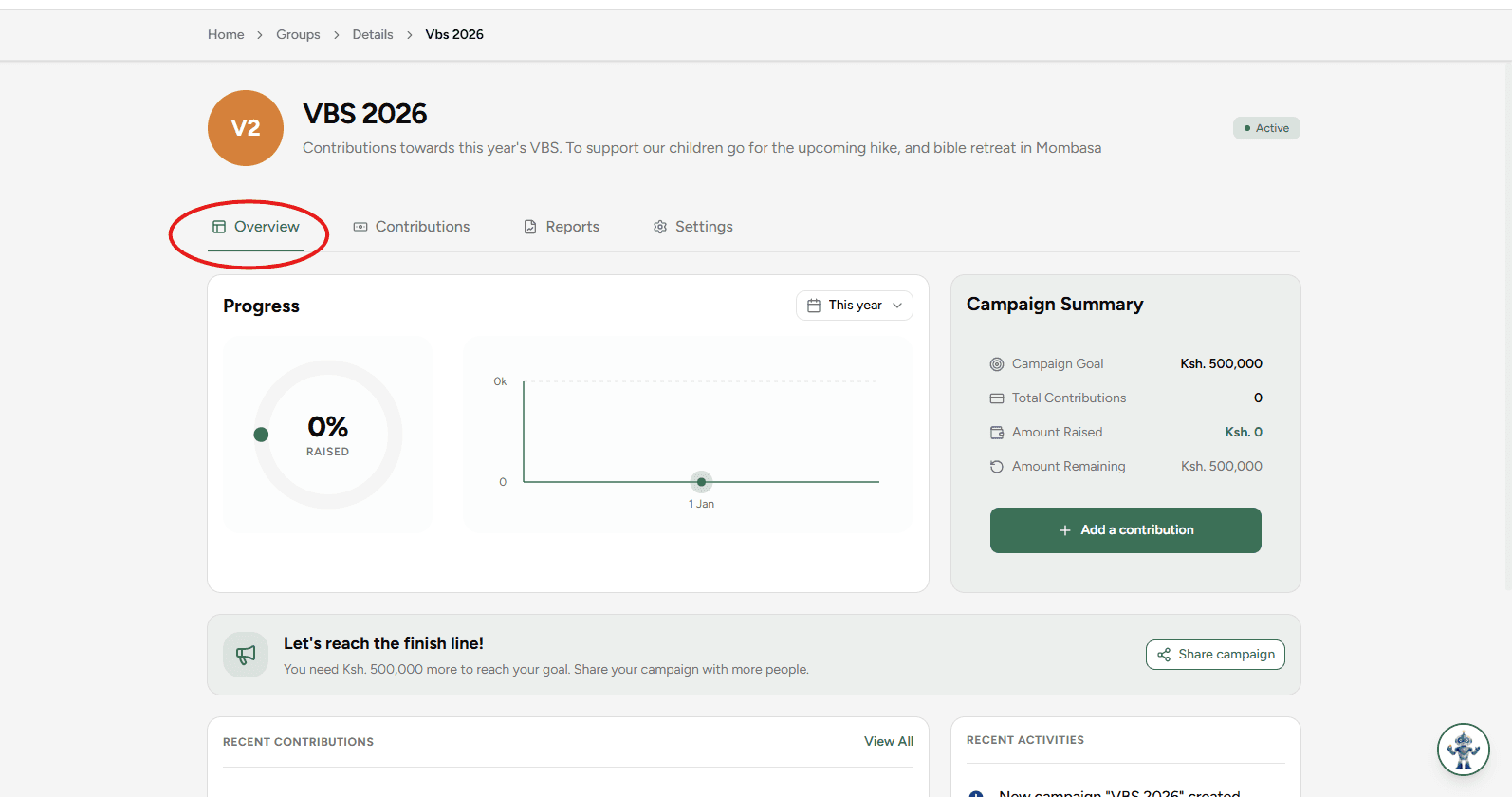
Overview
The Overview tab provides a high-level summary of your campaign's performance, including total amount raised against your target, recent activity, and a quick glance at the deadline.
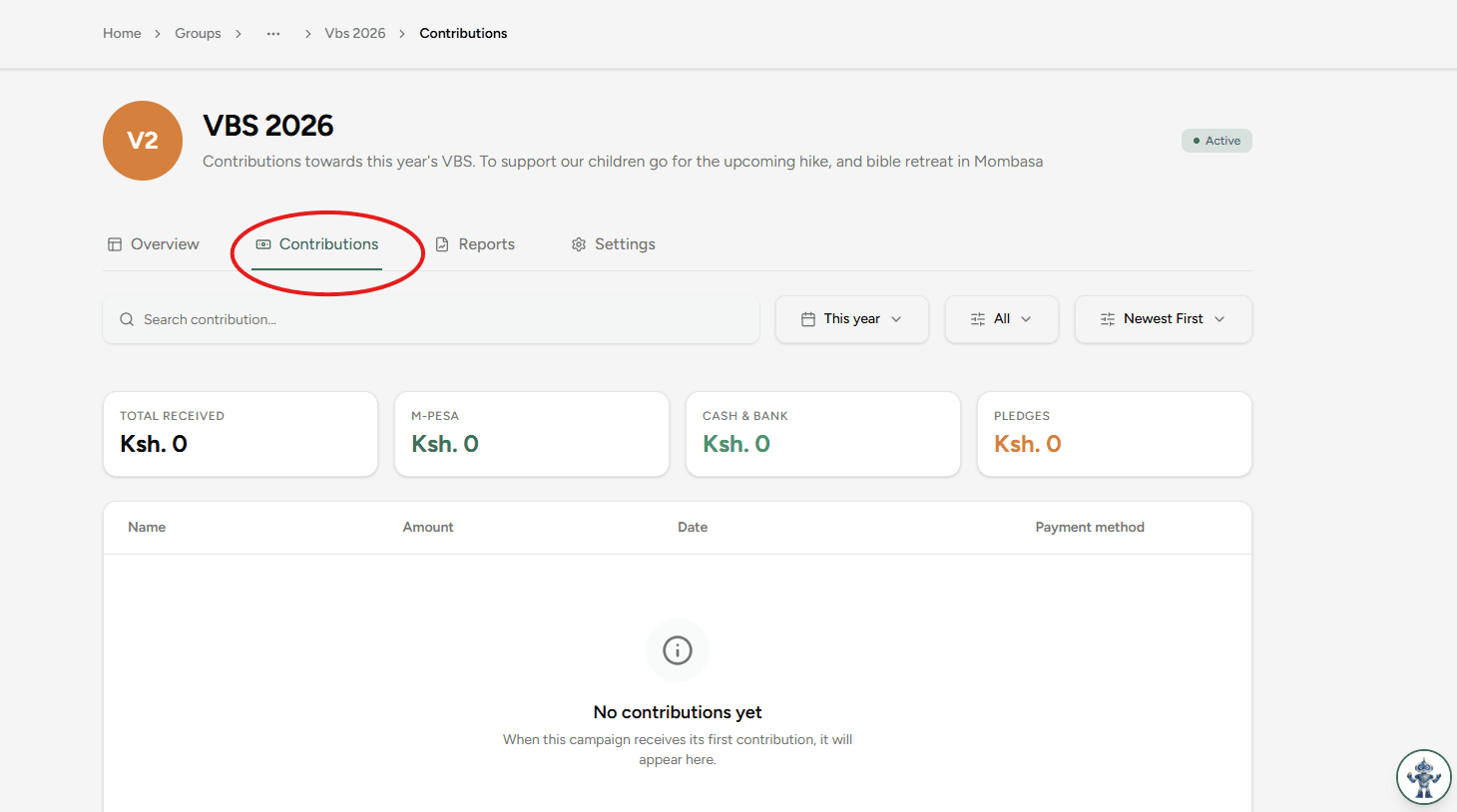
Contributions
The Contributions tab lists all the individual payments made towards this campaign. You can view, search, and verify transactions here.
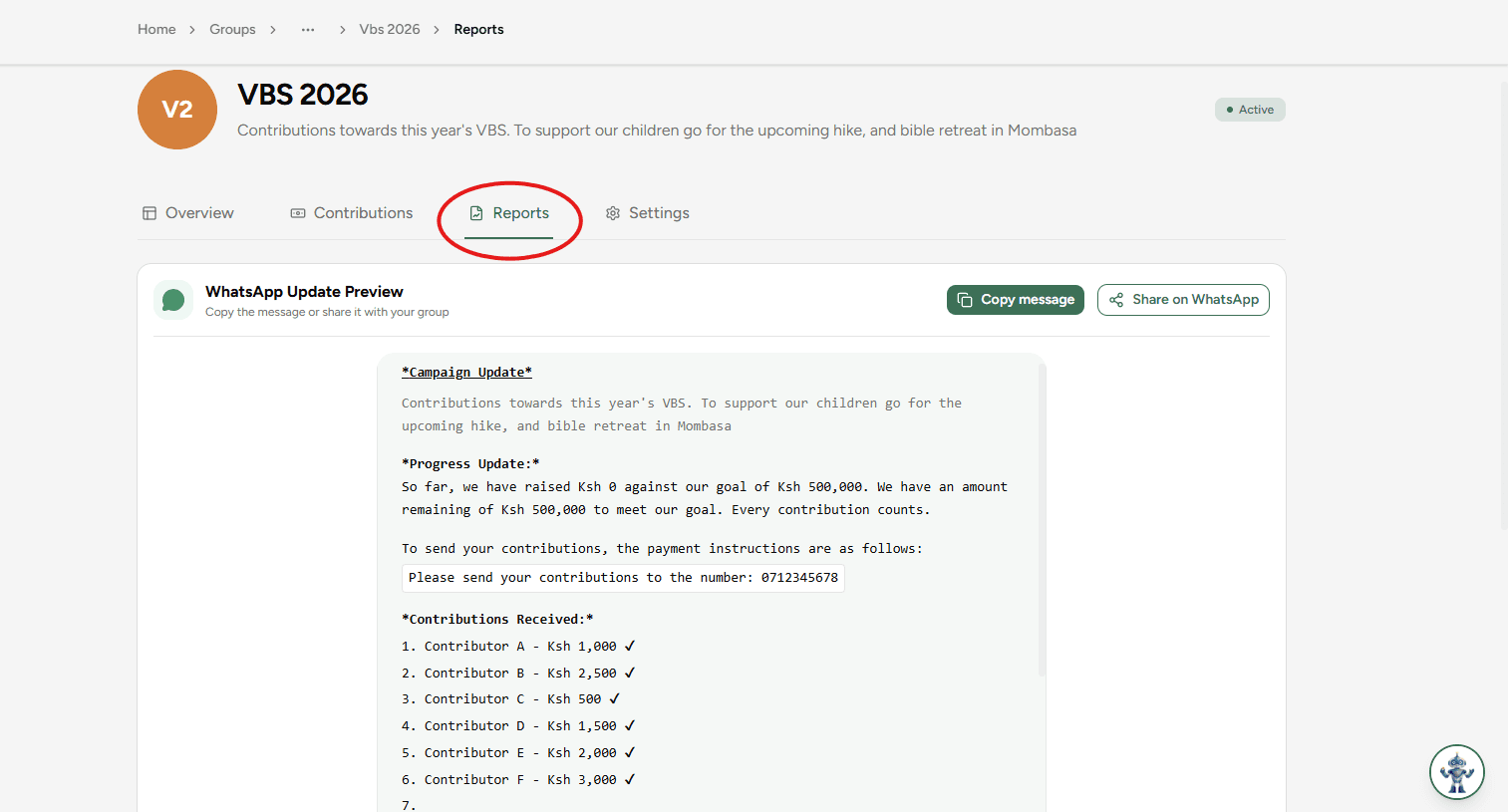
Reports
Under the Reports tab, you can generate detailed summaries and breakdowns of the campaign's finances to share with your members or stakeholders.
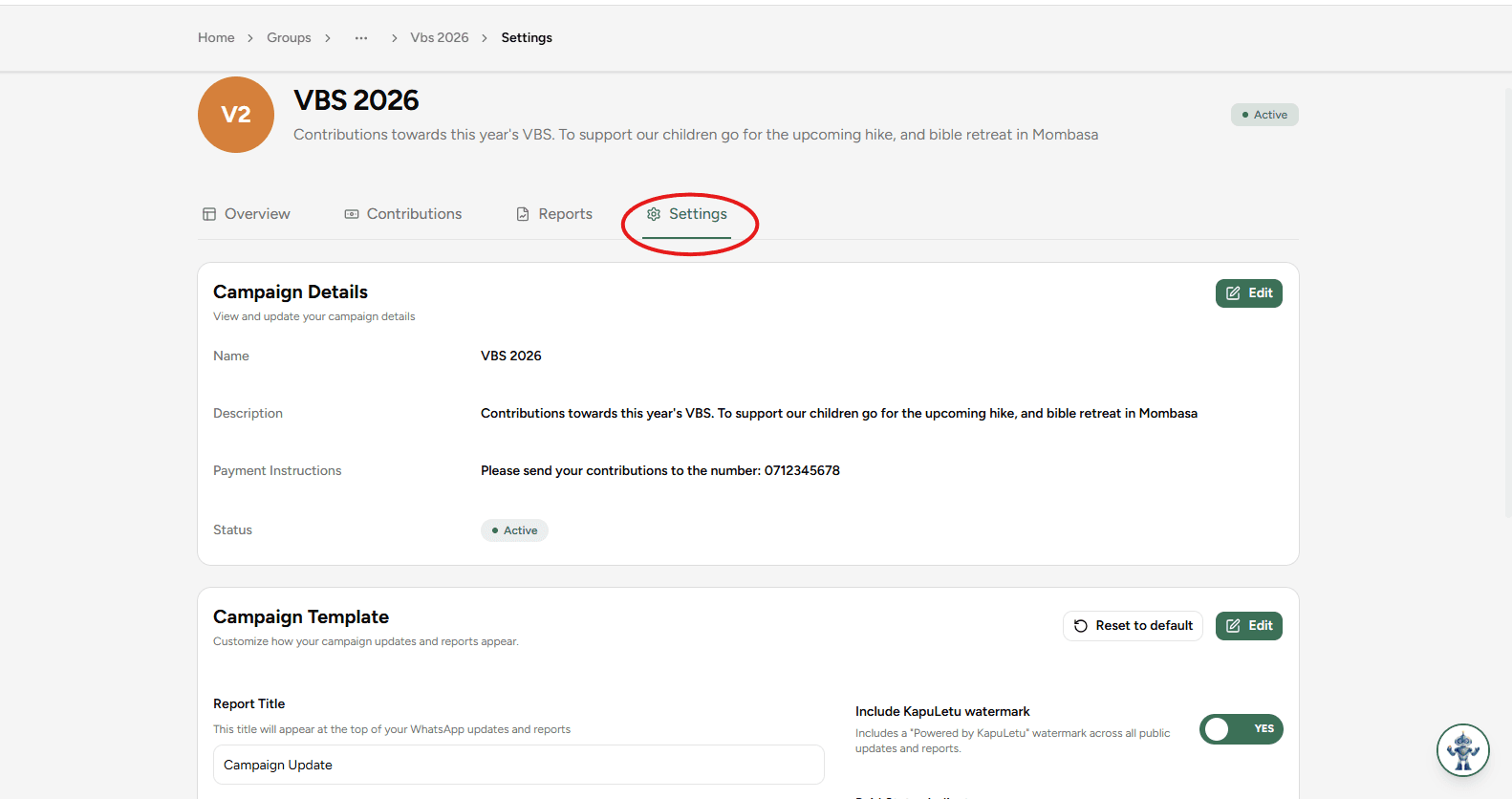
Settings
The Settings tab allows you to adjust the campaign's details, such as the target amount or deadline, and manage other configurations.